
Blog · Wedding Planning
How to Collect Wedding Photos from Guests Without an App
Learn how to collect wedding photos without app downloads using QR codes and browser-based upload tools that every guest can use instantly.
· 5 min read · WedPOV Team
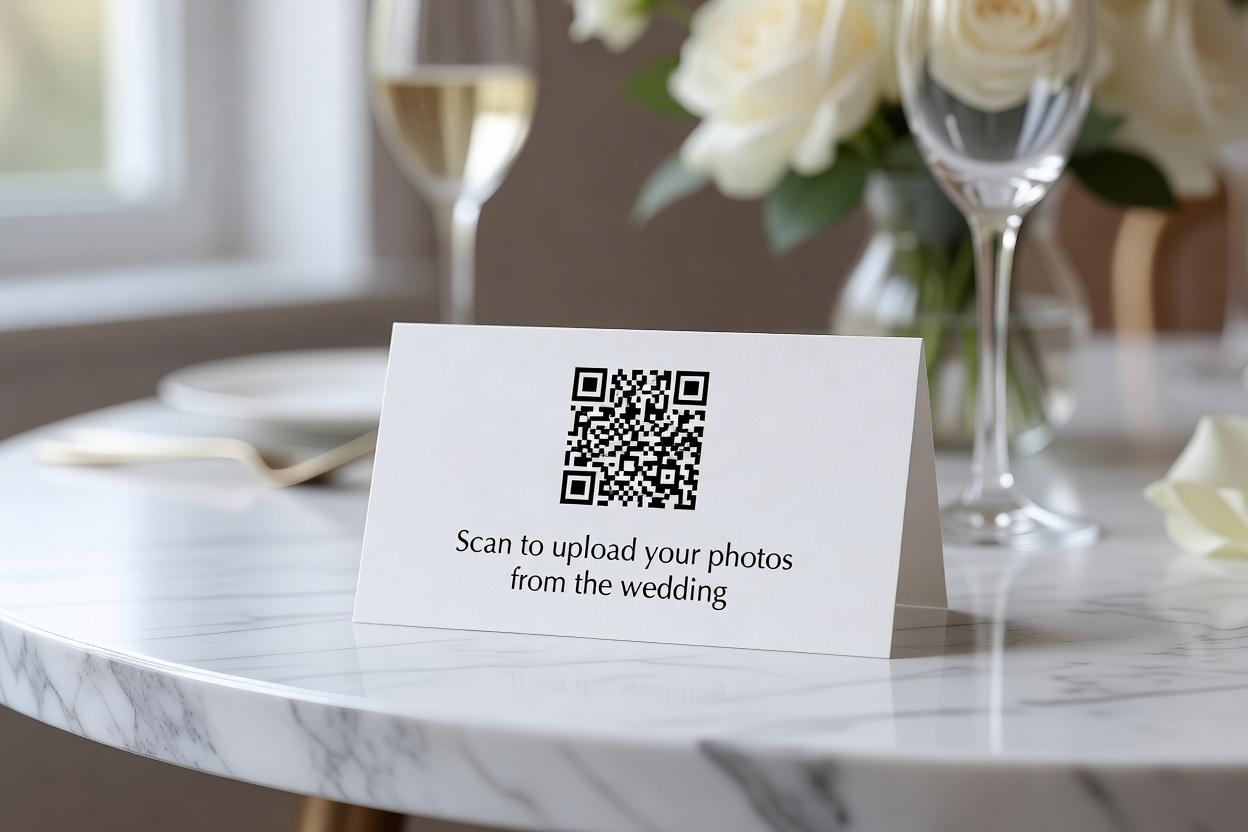
Want to collect wedding photos without app downloads? You don't need every guest to install something just to share their pictures. The simplest methods rely on QR codes and browser-based uploads — tools that work on any phone the moment your guests point their camera at a sign on the table.
Why Skip the App?
Dedicated wedding photo apps sound great in theory, but they create friction. Guests have to find the app, download it, create an account, and figure out the interface — all while trying to enjoy your wedding. Many simply won't bother. By the time the reception ends, you're missing photos from half your guests.
QR codes and browser uploads eliminate that friction. A guest scans a code, their phone opens a web page, they pick photos from their camera roll, and they're done. No download, no account, no learning curve.
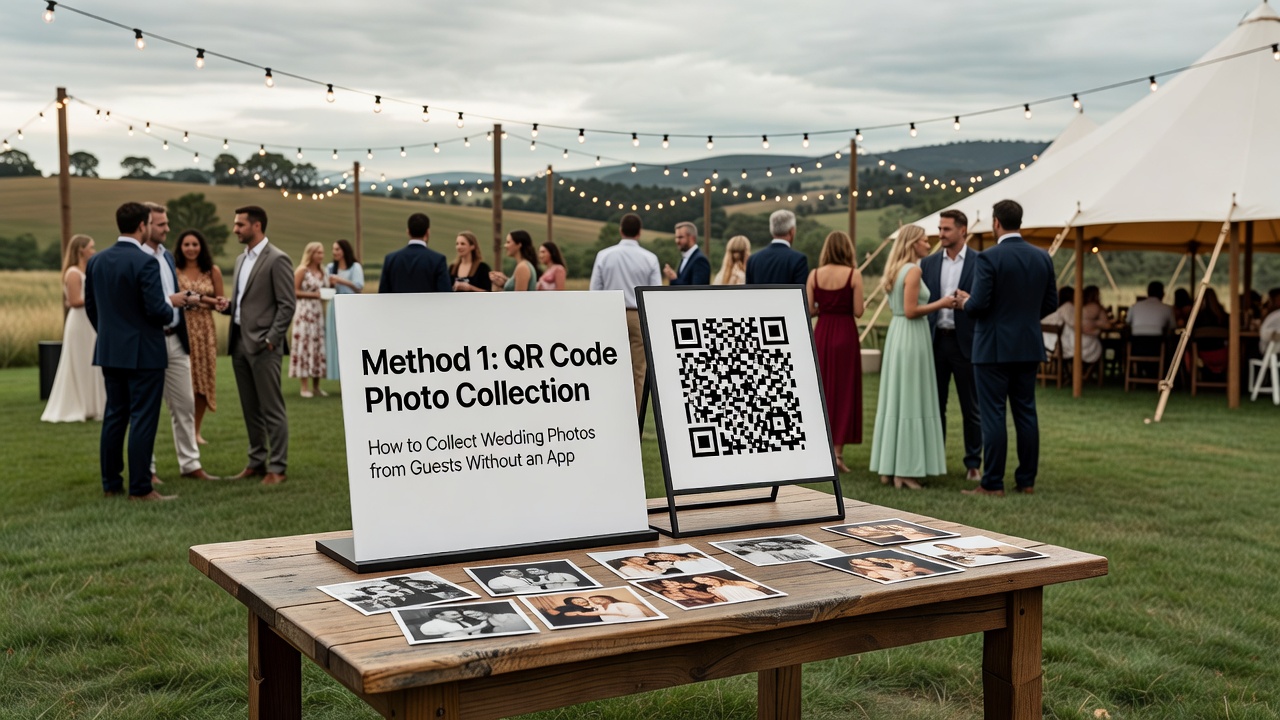
Method 1: QR Code Photo Collection
QR codes are the lowest-friction way to collect wedding photos without an app. Here's how to set it up.
Step 1: Choose a Photo Hosting Service
You need a destination URL that the QR code points to. Several free and low-cost options work well:
- Google Drive — Create a shared folder with upload permissions. Generate a QR code linking to the folder upload URL.
- Dropbox — Use Dropbox's file request feature, which lets anyone upload files to a specific folder without an account. Generate a QR code for the request link.
- Shared Google Form — Create a Google Form with a file upload question. Guests scan the QR code, fill a quick form, and attach photos. Files land in your connected Google Drive.
- Dedicated wedding photo sites — Services like WedShoots, Guestpix, or ShareFest offer browser-based upload pages designed specifically for weddings. Many provide QR codes as part of their package.
Step 2: Generate the QR Code
Once you have your upload URL, create the QR code:
- Use a free QR code generator like QRCode Monkey, QRStuff, or Bitly's QR tool.
- Enter the full upload URL (test it first in your own browser).
- Download the QR code as a high-resolution PNG or SVG.
- Test it with your own phone before the wedding day.
Step 3: Display the QR Code at the Wedding
Place QR codes where guests will naturally see them:
- Print on table cards or tent signs at each reception table.
- Include a small QR code on the wedding program or menu.
- Place a larger sign near the entrance or gift table.
- Add a friendly instruction line: "Scan to share your photos!"
Keep the text short and inviting. Guests should understand what to do in under five seconds.
Method 2: Browser-Based Upload Links
Not every guest will scan a QR code. Some prefer a direct link they can tap. Browser-based uploads work through a simple URL shared via text, email, or even a wedding website.
Step 1: Create a Browser Upload Page
The same services above — Google Drive, Dropbox file requests, Google Forms, or dedicated wedding platforms — all generate shareable URLs that work in any mobile browser. Pick the one that fits your budget and comfort level.
For a fully free option, a Google Form with file upload is hard to beat. It collects the photo and optional metadata like the guest's name and a message, all stored neatly in your Google Drive.
Step 2: Share the Link Widely
Distribute the upload link through multiple channels so guests encounter it more than once:
- Add it to your wedding website.
- Include it in the welcome email or text message to guests.
- Print it on a sign alongside the QR code (some people prefer typing a short URL).
- Have your MC or DJ announce it during the reception.
- Use a URL shortener (Bitly, TinyURL) so the link is easy to type if needed.
Step 3: Keep the Page Simple
The upload page itself should be minimal — a title, brief instructions, and a button to select photos. If you use a Google Form, limit it to name (optional), photo upload, and maybe a short message field. Long forms reduce completion rates. The goal is three taps: open link, select photo, submit.
Method 3: Shared Cloud Album with Upload Access
Google Photos and Amazon Photos both allow you to create shared albums where invited guests can add photos directly from their browser — no app required for upload, though a Google or Amazon account may be needed.
To set this up in Google Photos:
- Create a new shared album.
- Set sharing permissions to allow anyone with the link to add photos.
- Generate a shareable link and convert it to a QR code or distribute via the methods above.
This keeps all photos organized in one place and gives you a clean, chronological view of the day from every angle.
Best Practices for Collecting Wedding Photos Without an App
- Test everything before the wedding. Scan your own QR code, open the upload link, and submit a test photo. If something breaks on your phone, it'll break for guests too.
- Use Wi-Fi when possible. Photo uploads use data. If your venue has Wi-Fi, share the network name and password so guests aren't worried about using their data plan.
- Remind guests multiple times. People forget in the moment. A sign at the entrance, a note on the table, and a DJ announcement cover all the bases.
- Set expectations on file size. Most phones shoot photos in the 3–8 MB range. Browser upload tools handle this fine, but if guests try uploading 4K video, it may fail or take forever. A small note like "photos only, please" helps.
- Keep the collection window open. Give guests at least a week or two after the wedding to upload. Many take photos and forget to share until days later.
- Backup the collection. Once photos are uploaded, copy them to a second location. Cloud services occasionally lose files, and wedding photos are irreplaceable.
FAQ
Do guests need to download anything to share wedding photos?
No. With QR codes and browser-based upload links, guests only need their phone's camera and a web browser. No app download is required.
What's the cheapest way to collect wedding photos without an app?
A Google Form with file upload is completely free and works on any smartphone browser. Dropbox file requests are also free up to your storage limit.
How many photos will guests actually upload?
It varies, but removing the app barrier significantly increases participation. Expect 30–50% of guests to share at least one photo when the process takes under 30 seconds.
Can guests upload videos too?
Yes, most browser upload tools accept video files. However, videos are much larger than photos and may take longer to upload or fail on slow connections. If you want videos, mention it on the instruction sign.
Conclusion
Collecting wedding photos without an app is all about removing friction. A QR code on a table card, a shared link in a welcome message, or a simple Google Form — any of these methods will capture far more guest photos than asking everyone to download something. Pick the method that fits your budget, test it before the big day, and enjoy reliving your wedding through your guests' eyes.
Quick answers
- Do guests need to download anything to share wedding photos?
- No. With QR codes and browser-based upload links, guests only need their phone's camera and a web browser. No app download is required.
- What's the cheapest way to collect wedding photos without an app?
- A Google Form with file upload is completely free and works on any smartphone browser. Dropbox file requests are also free up to your storage limit.
- How many photos will guests actually upload?
- It varies, but removing the app barrier significantly increases participation. Expect 30–50% of guests to share at least one photo when the process takes under 30 seconds.
- Can guests upload videos too?
- Yes, most browser upload tools accept video files. However, videos are much larger than photos and may take longer to upload or fail on slow connections.